
Before You Begin
Download the update file to the device you will use to connect to the AGD650.
The filename will follow this format:
MI-220-x-UPDATE.ZIP
Here, x represents the software version number.
Note: You must be close to the device when performing the update.
To ensure the update is successful, please stand at the base of the pole of the device you are updating. Close proximity will help maintain a strong, uninterrupted Wi-Fi connection to the device during the installation process.
Installation Instructions
- Connect your device to the AGD650 via Wi-Fi.
- Open a web browser and go to http://10.42.0.1:8080/.
- Select the Advanced settings tab.
- Under Software Updater, click Choose file and select the update file.
- Click Install. The web interface should indicate that the file is uploading.
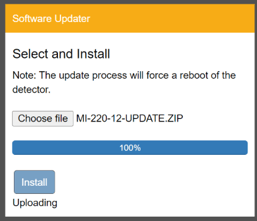
-
Wait while the AGD650 is flashed with the new image.
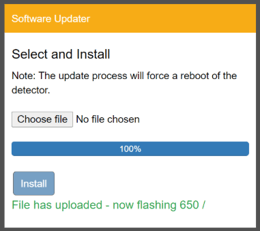
-
Wi-Fi connectivity will be lost during this process.
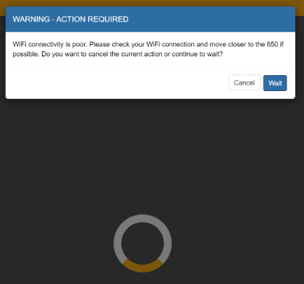
- Allow approximately 90 seconds for the installation to complete and the AGD650 to restart. The red LED will flash five times when the AGD650 is ready.
- Reconnect to the AGD650 via Wi-Fi.
- If a Wi-Fi connectivity dialog appears, click Cancel or Wait. If the web interface does not recover, refresh the browser or close and reopen the browser tab.
Verify the Update
- Open the AGD650 web interface.
- Go to the Advanced tab.
- Check the firmware version under Information Window.
Confirm that the displayed version matches the update you installed.
Incompatible Update Files
If the following message appears, the update file is incompatible with the detector’s base version:
The update is not compatible with this detector version.
You can find the detector’s base version under Information Window on the Advanced tab.